The "Delete browsing data" menu in Google Chrome allows you to remove specific types of information stored as you use the browser. Here is a breakdown of what each one deletes:
Core Browsing Data
Browsing history: Removes the list of web addresses you've visited, along with their shortcuts and address bar predictions.
Cookies and other site data: Deletes files created by websites to save browsing info, like keeping you signed in or remembering your site preferences. Note: Clearing this will sign you out of most websites.
Cached images and files: Clears stored parts of pages (like images and text) that Chrome saves to help them load faster on your next visit.
Additional Stored Information
Download history: Erases the list of files you have downloaded using Chrome. This does not delete the actual files from your computer, only the record of them within the browser.
Site settings: Resets any specific permissions or preferences you've granted to websites, such as camera access, location sharing, or pop-up permissions.
Hosted app data: Deletes data from Chrome Web Store apps you have installed that store data locally on your device
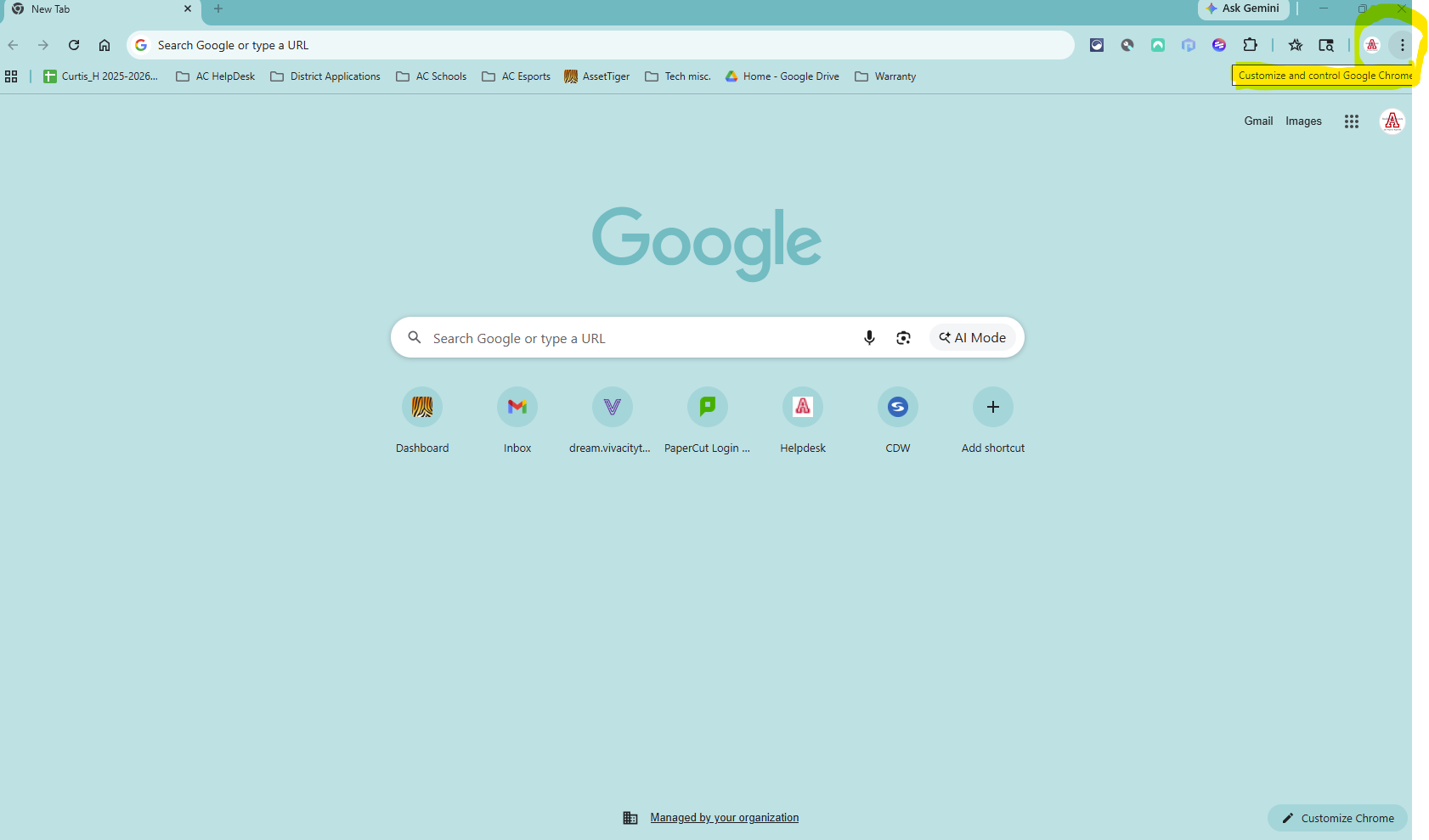
Step 1) Click the three vertical dots in the top right hand corner of the browser (located just under the X to close the window)
Step 2) Click “Delete browsing data…”. This will open a pop up window that looks like this:
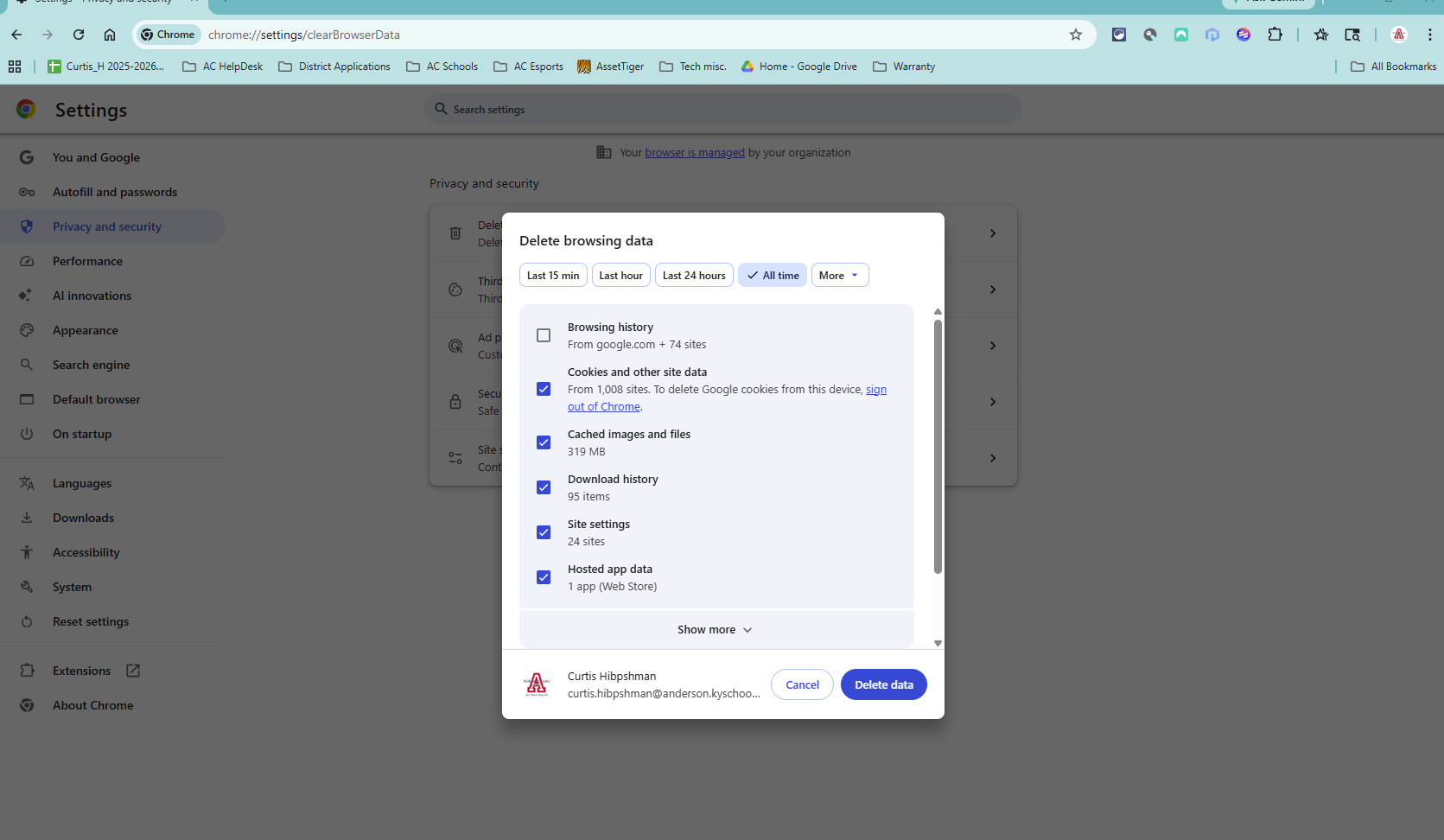
Note: You may have to select an "Advanced options" (not shown here) if you do not see the boxes or the timeframe as shown
Step 3) Choose a timeframe to delete. We suggest selecting “All Time” to clear as much memory as possible if this is being done to improve performance.
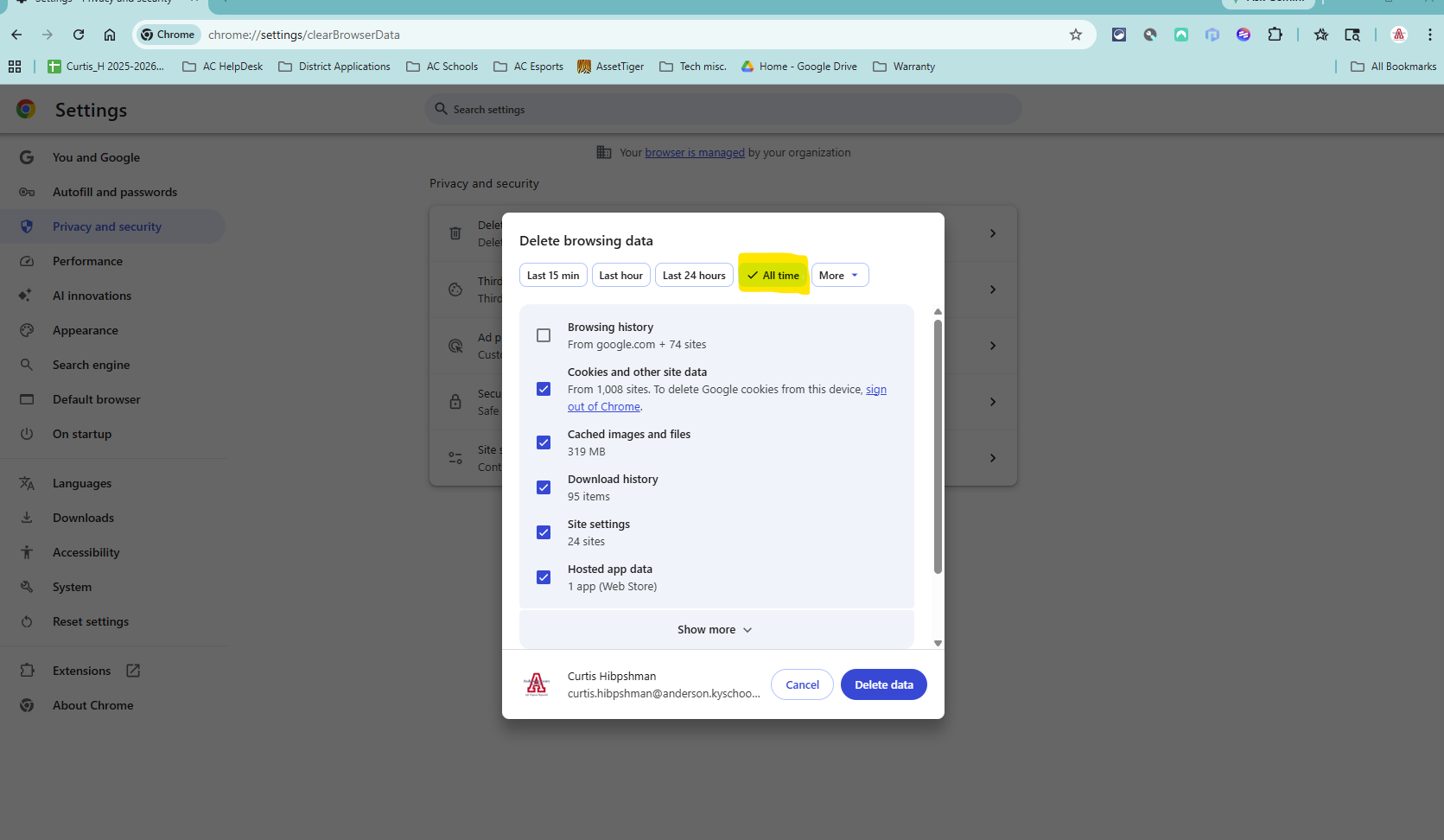
Step 4) Choose what to delete. For performance we recommend selecting “Cached images and files”, “Cookies and other site data”, and “Hosted App data”. (If using a Chromebook, also select “Download History”)
Note: Deleting “Cookies and other site data” will sign you out of most sites, which will require you to sign back in the next time you visit the site. If you would prefer not to do this, you can try selecting Cached images and files and Hosted App data (and Download History if using a chromebook) initially to see if that is enough to fix the performance issues. However, if the issues still persist after deleting those, you will still need to take this step as there may be corrupted files in the cookies that are causing the issue.
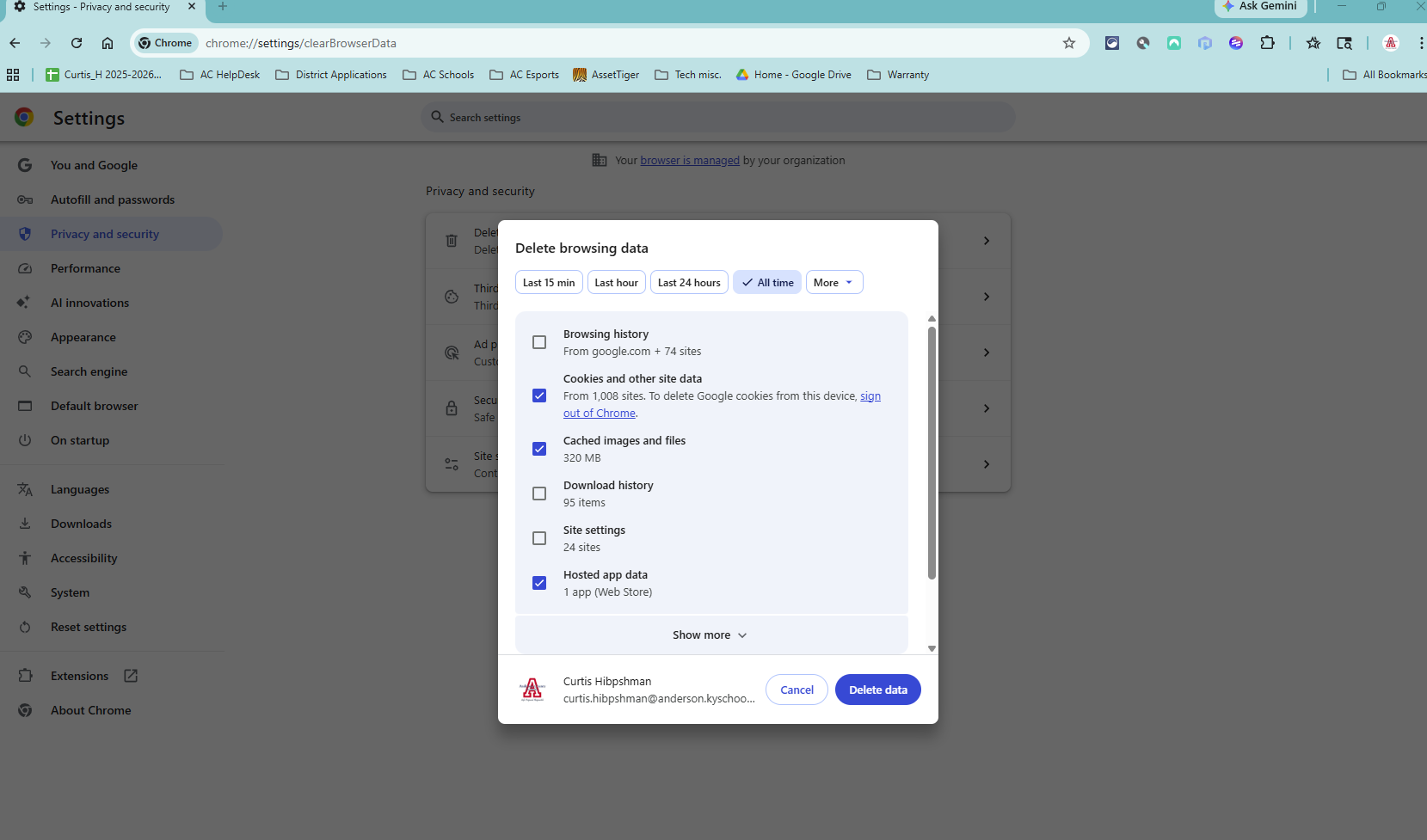
(↓ ↓ Chromebook Only ↓ ↓) Unless you just want to delete your download history anyway, it should not affect the performance of a Windows machine
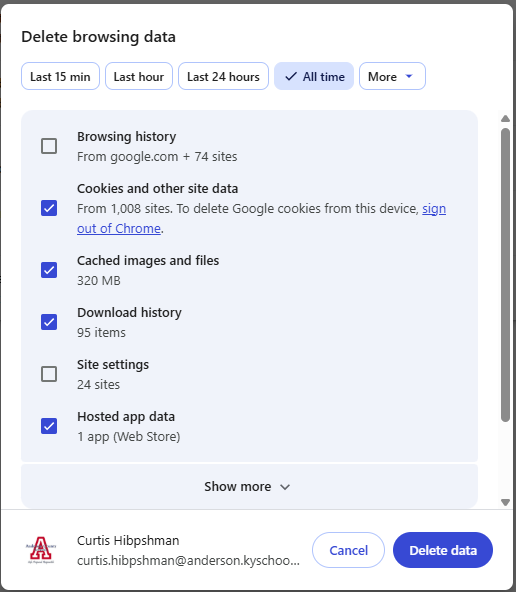
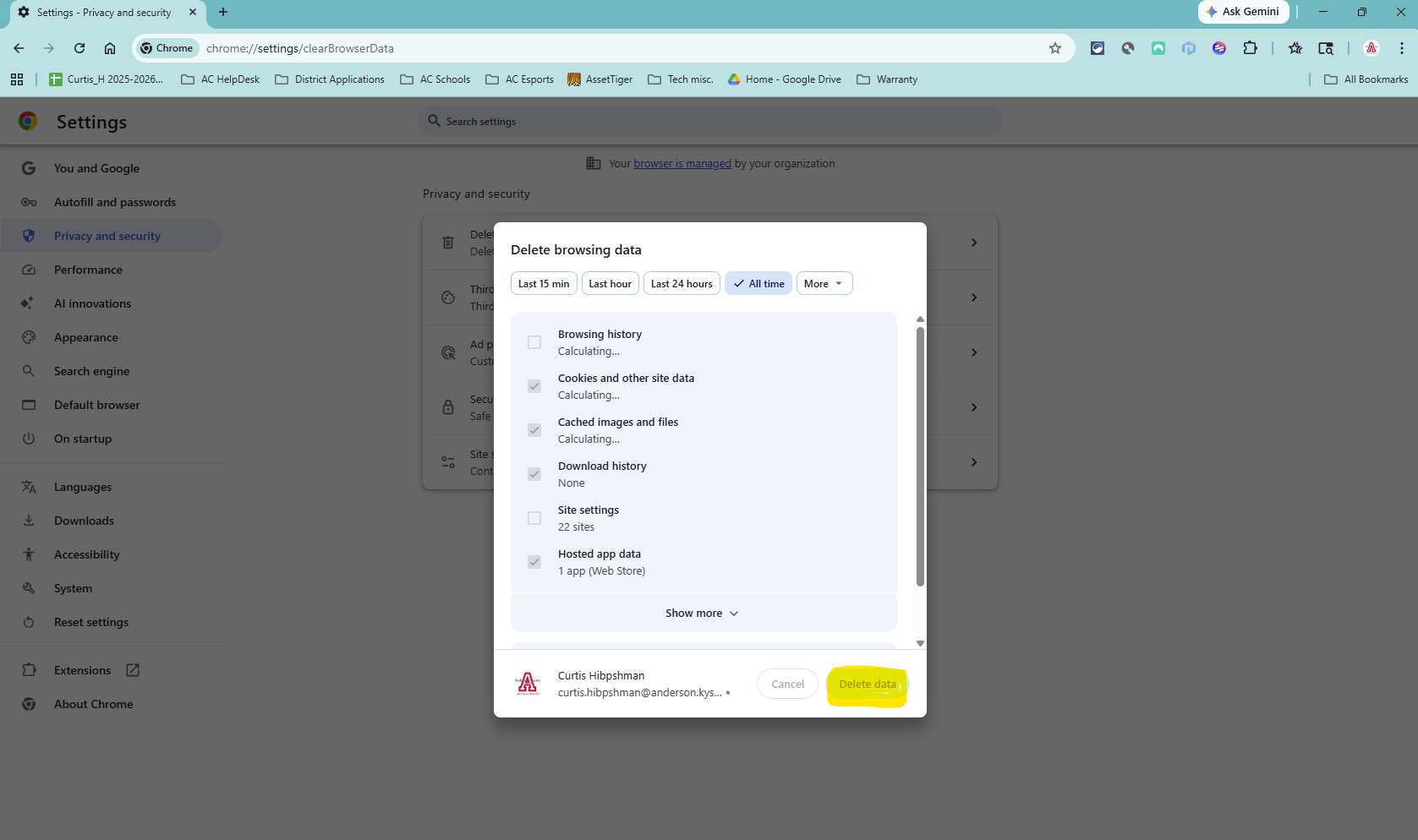
Step 5) After selecting what you want to delete, you will click the “Delete data” button in the bottom right of the pop-up window. This will delete all of the selected data from your browser, which should help restore your devices performance.
If it does not fix your issue, feel free to submit a ticket, or respond back to the ticket you may have already submitted, and let us know what you are having trouble with and we will be happy to continue assisting. You can submit a ticket here.
Was this article helpful?
That’s Great!
Thank you for your feedback
Sorry! We couldn't be helpful
Thank you for your feedback
Feedback sent
We appreciate your effort and will try to fix the article