Step 1) Sign into GoGuardian Teacher https://teacher.goguardian.com
When signing in, use the “Sign in with Google” or “Continue with Google” option, whichever is present. Once you are signed in, you should be on the Active Classes Page.
Step 2)
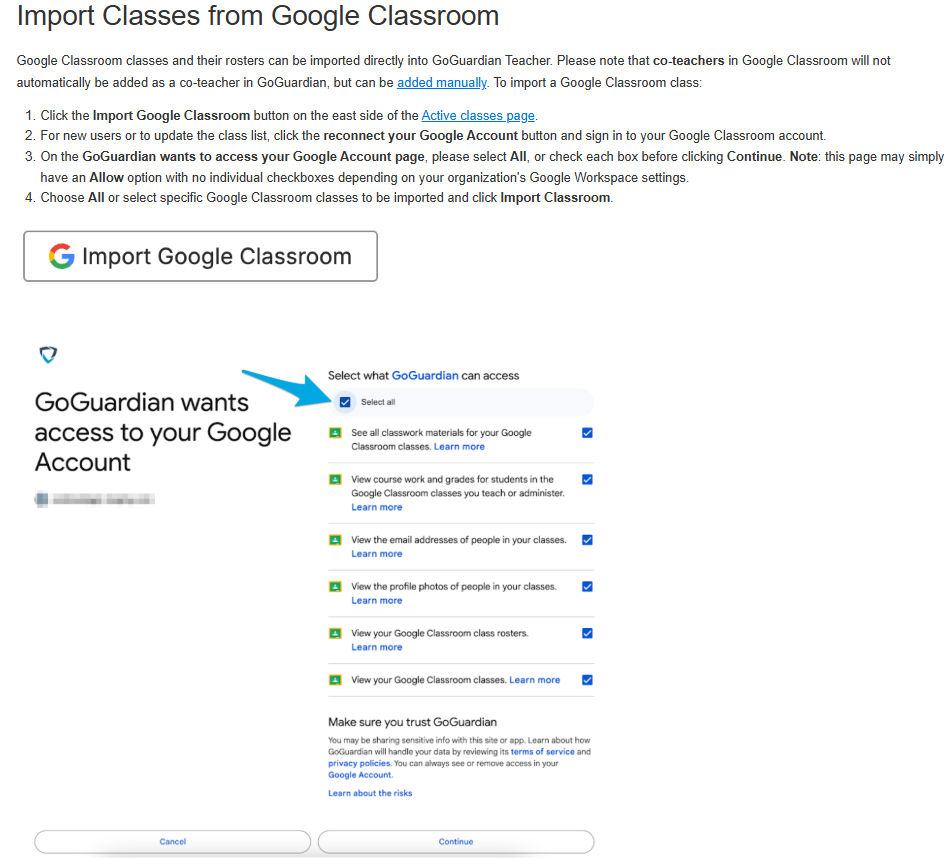
The following info is used when you need to modify your class roster (students added/removed from class):
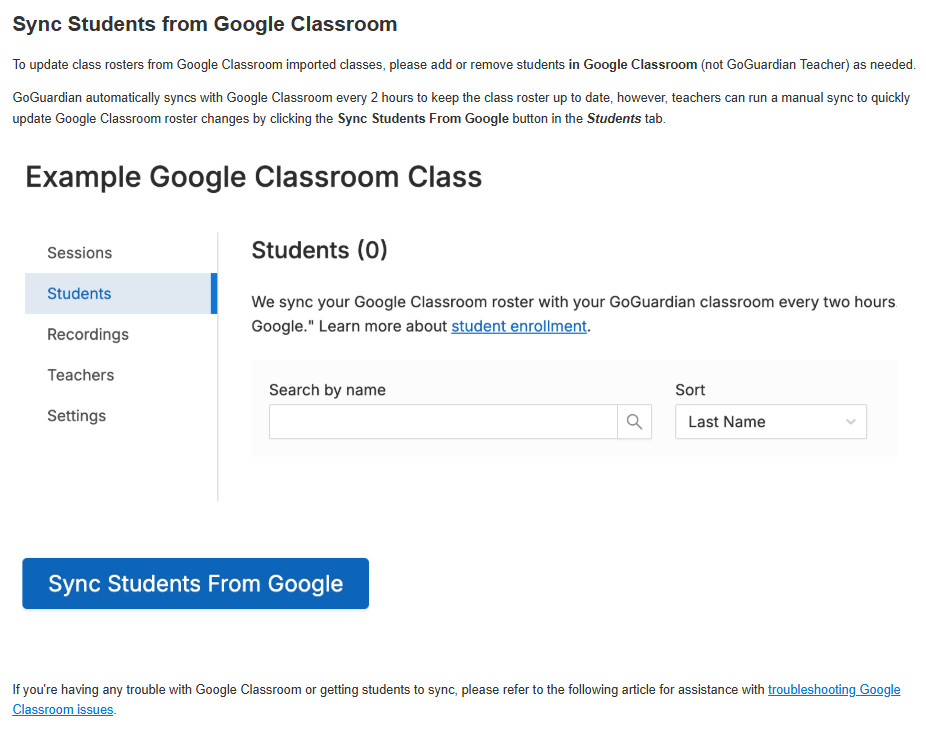
A classroom session is the digital equivalent of a classroom period. When a classroom session begins, all enrolled students with GoGuardian installed will automatically join.
Step 3)
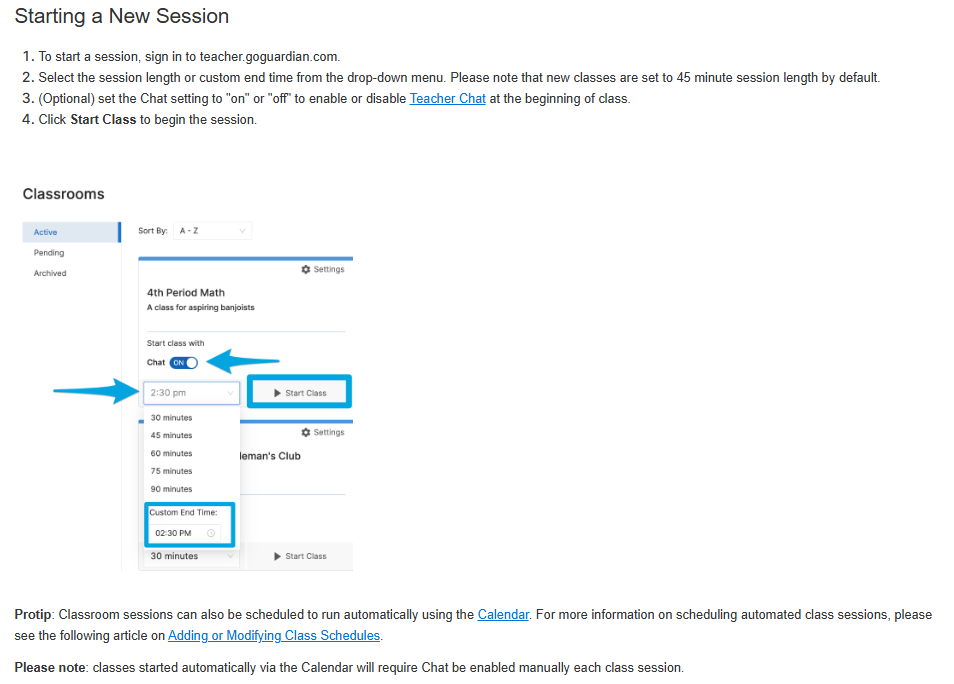
End a Session Early or Add Additional Time to a Session
Class sessions can be ended at any time by clicking the End Session button.
To extend a class session:
Click the Update Time button.
Select the amount of time to extend the session or type in a new end time.
Click Update Session.
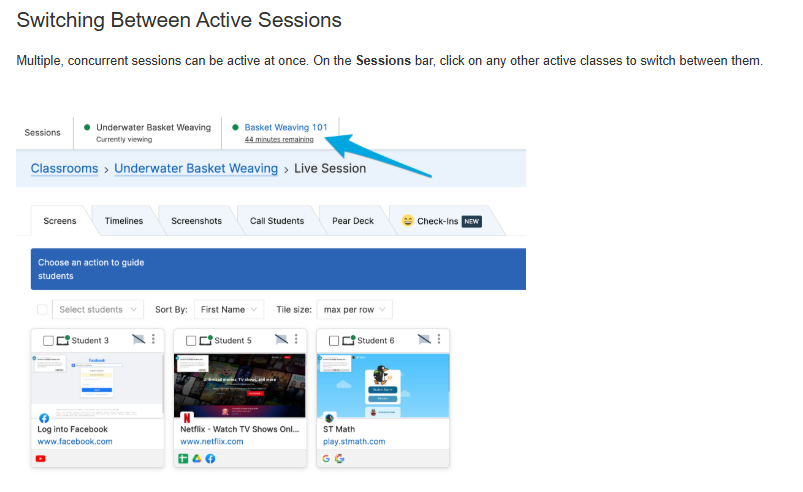
Viewing Past Sessions
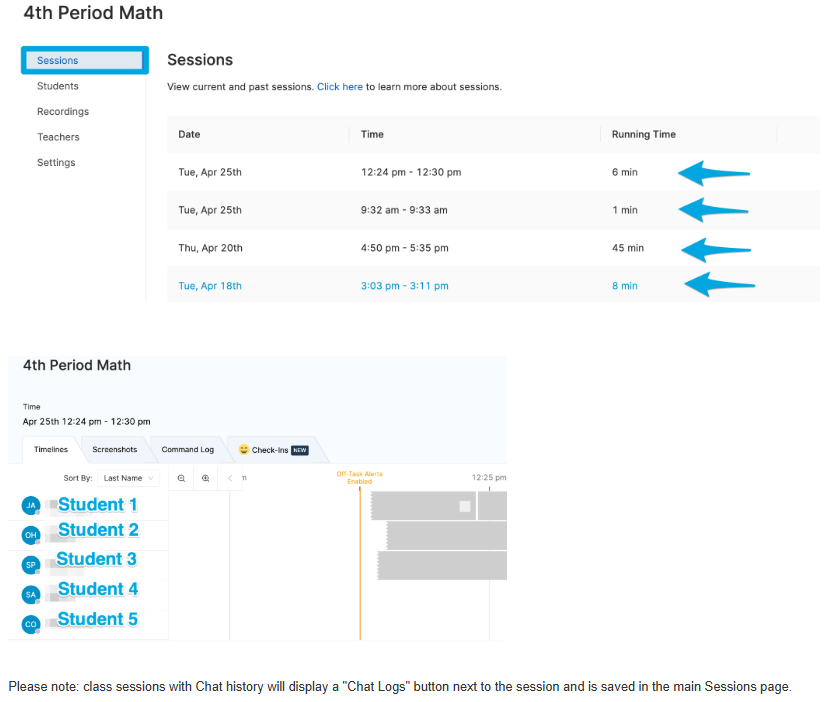
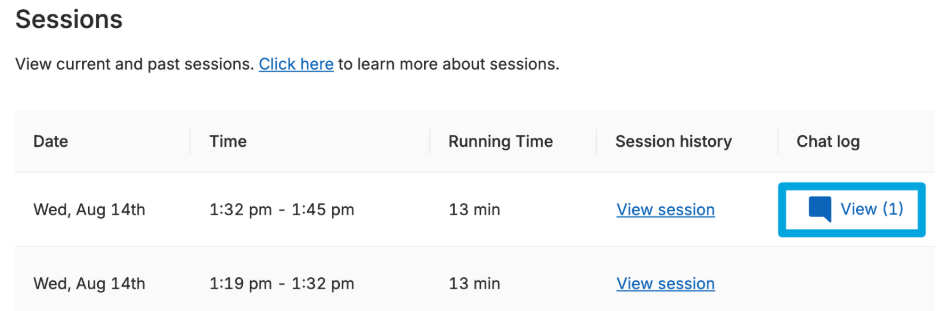
Session data including student browsing history during class, Chat records, Screenshots taken by teachers, Student Check-Ins, and a log of Teacher Commands is automatically saved and can be accessed in the class session history at anytime.
To access previous class session data:
Navigate to the Sessions tab by clicking on the class tile or the "View Sessions" option from the Settings cogwheel menu.
Under the Date, Time, and Running Time columns, click on the previous class session you'd like to review
Select from the Timelines, Screenshots, Command Log, and Check-Ins tabs to sort by the respective data
Was this article helpful?
That’s Great!
Thank you for your feedback
Sorry! We couldn't be helpful
Thank you for your feedback
Feedback sent
We appreciate your effort and will try to fix the article